Keep the items behind your Swiggy, Zomato and Instamart spending
Three real Ledgerly videos show how to capture food and grocery orders, check older purchase dates and keep item names, quantities and fees beside a payment.
A payment of ₹931 tells you how much left the account. It does not tell you which six food items were in the order, what the packaging cost or how much of the total was delivery and tax.
Ledgerly's Tap Log workflow adds that missing context. Open a supported order screen, tap the floating Ledgerly button, review the captured details and choose Log it. Then open the purchase in Ledgerly to see what was saved.
The three videos below show actual Swiggy, Zomato and Instamart purchases recorded in September 2026. They use the accepted, privacy-masked exports, with on-screen instructions and music. They are examples from those app versions, not a promise that a merchant will keep the same screen layout forever. Ledgerly is currently a closed Google Play beta.
Swiggy: from one payment to six item lines
The Swiggy example begins with a completed ₹931 order containing six item lines. The video follows the order from Swiggy into Ledgerly, then opens its item breakdown and fees.
- In Swiggy, open Past orders, choose Food and open the completed order.
- Open its summary and tap the floating L button.
- Read the preview. Check the items, total and purchase date before choosing Log it.
- Return to Ledgerly and find the original purchase in History.
- Choose Show items, open the breakdown and scroll through the lines and fees.
In this recording, Ledgerly reports that the capture merged into an existing bank entry. The order details enrich that payment instead of appearing as an additional ₹931 expense. That is what happened in this example; it is not a guarantee that every payment and capture will match without review.
The saved bill has ₹768 in items and ₹163.36 in fees, with the displayed bill total of ₹931. Those displayed parts differ from the final total by ₹0.36. Keep the merchant's final bill alongside the components rather than silently rewriting a source amount to make the arithmetic look tidier. A captured receipt is a record you can inspect, not a reason to ignore a discrepancy.

Zomato: review the date before saving an old order
The Zomato order has two dishes and a total of ₹431.72. The important part of this walkthrough is the date review.
Open Your orders, select the completed order, open the bill and tap Ledgerly's capture button. In the preview, open the date control and choose September 17, the date used for this recorded order. Confirm it, inspect the preview again and tap Log it. Then open the purchase in Ledgerly and review its item breakdown.
Use your own order's date when following the steps. September 17 is evidence from the demonstration, not a setting everyone should copy.

We deliberately kept that correction in the video. An old order does not become a purchase from today just because you captured it today. Equally, a capture preview should not be presented as having recovered a date automatically when a person had to select it. Taking a moment here keeps the purchase in the period you intended to record.
Instamart: keep full product names and the original month
For Instamart, start in Swiggy's Past orders and choose the Instamart tab. Open the completed order and its bill, then tap Ledgerly.
This example contains two products and a ₹2,140 total. The recording moves the calendar back to August 17 before saving, then opens the purchase in Ledgerly to show the full product names and the ₹12 handling fee.
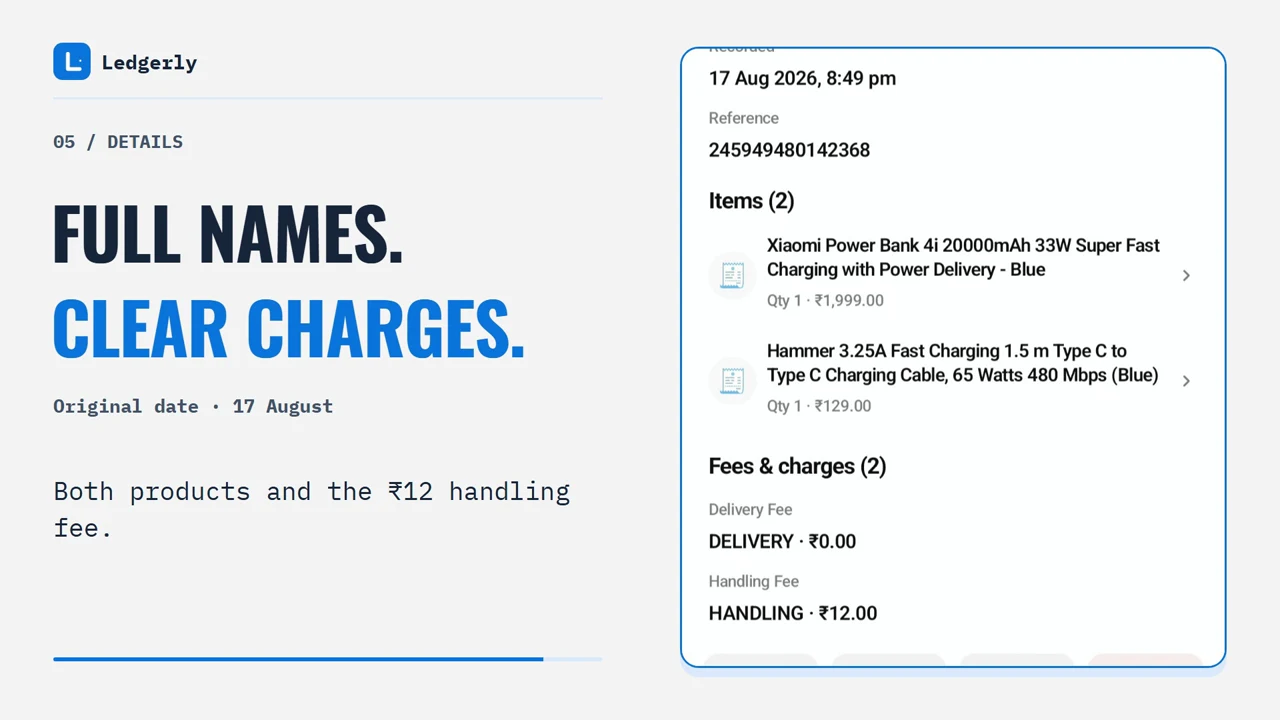
The distinction matters with groceries. A store name and a total are useful for a spending overview; product names and quantities are useful when you want to remember what that particular order contained. Capture the supported order screen, then check the resulting detail rather than assuming that a payment notification contained the whole shopping basket.
As with Zomato, use the date on your own order. The older month in the video is a demonstration of reviewing historical information, not automatic historical-date recovery.
Payment detection and order capture are separate
Supported bank SMS and payment notifications can provide the payment side of a purchase. The merchant's order screen provides the item side. The videos show the second step and, in the Swiggy example, the details attaching to an existing payment.
After a capture, check History for the total, date and item breakdown. If something looks duplicated or matched to the wrong entry, inspect it before using your totals. Merchant layouts, missing payment information and older orders can all make a recording differ from your own run. Our features page explains the current supported paths; the interactive demo shows the broader interface.
Do not treat these three walkthroughs as evidence that every shopping app has an itemized parser. Swiggy, Zomato and Instamart are supported examples. Other merchants may have a different capture path, including screenshot-only handling.
What capture permission allows
Tap Log uses Android accessibility access to read supported app screens. It is a powerful permission, so read the restricted-settings and accessibility guide before enabling it.
The ongoing Keep capture ready helper is on by default and can buffer supported app text before you tap the floating button. An order is saved only after capture and Log it. You can stop the helper or pause capture. Those are separate facts: “not saved yet” does not mean “no text has been read yet.”
The ledger stays on the phone and raw bank SMS text is not uploaded. Optional Cloud AI has a separate consent step; receipt, image and PDF uploads have their own switch. Link previews are on by default and can contact the linked website. Read the privacy policy for the complete choices rather than assuming that every optional feature is offline.
Getting into the current beta
Ledgerly is not a public install for everyone yet. Use the contact form, select Beta access, and tell us you would like to test it. Admission and the Play opt-in step are separate from submitting that request.
Once you have access, use the getting-started guide. Begin with one completed order, check the saved result and learn the controls before working through a long purchase history. That first complete loop is more useful than granting every permission and hoping the details are right.
Common questions
Can Ledgerly track my Swiggy and Zomato spending?
Ledgerly can record payments from supported bank SMS and payment notifications. Its Tap Log capture can also read supported Swiggy, Zomato and Instamart order screens so you can review and save item details. Payment detection and order capture are separate steps.
Does opening an order automatically save it?
No. The Keep capture ready helper can buffer supported app text before you tap, but saving an order still requires capture and Log it. Review the preview before confirming.
Will Ledgerly always recover the original date of an old order?
No. The Zomato and Instamart recordings explicitly show a manual date correction. Check the merchant's receipt and set the purchase date before logging an older order.
Will capturing a bill always create another expense?
Not necessarily. The recorded Swiggy example merges the order details into an existing bank entry. Matching depends on the available payment and order information; check History afterward rather than assuming every capture matched correctly.
Is this available to everyone on Google Play?
Ledgerly is currently in closed testing. You need access to the test with the Google account you use on Play. The contact form lets you request access; admission is separate.